Mobile Printing at the Library
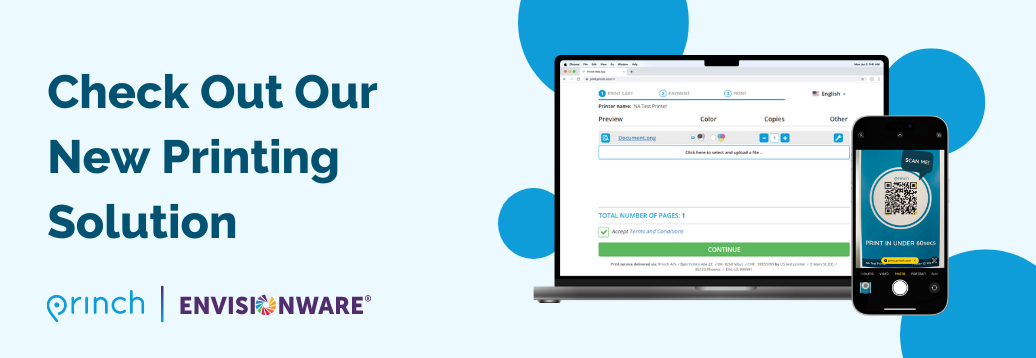
Introducing Princh, our new mobile printing solution!
We have implemented Princh, a new printing solution, at our libraries. With our new solution it is now possible to easily and securely print from a mobile phone, tablet or laptop, both remotely and at the library. It's so fast and simple to use, we love it and so will you.
Printing prices
| Size | B/W | Colour |
| A4 | $0.30 | $1.25 |
| A3 | $0.60 | $2.50 |
Visit the library within 24 hours to collect your print job(s). If not collected within 24 hours, you may need to send your job again.
Payment options
- Dubbo and Wellington: Eftpos or Cash
- All other MRL Branches: Cash only
Princh Printers
| Printer Name | Printer ID |
| Dubbo Library Printer | 109217 |
| Coolah Library Printer | 109218 |
| Dunedoo Library Printer | 109219 |
| Coonabarabran Library Printer | 109220 |
| Wellington Library Printer | 109221 |
| Narromine Library Printer | 109222 |
| Trangie Library Printer | 109223 |
- To print from your mobile phone, tablet or computer:
- Locate the print guide poster near the printer and scan the QR code or click one of the Printer Names listed above.
- Alternatively, open your browser, go to print.princh.com and enter the 6-digit ID to select the printer (find IDs above).
- Upload your document(s).
- Adjust your settings.
- Enter your email address.
- Proceed to the Library front desk to collect your printing.
Staff will release your print jobs to the printer after payment has been made.
Print with Princh in under 60 secs.
- Install the Princh app for iOS or Android.
- Open your document and share it with the Princh app.
- Select the printer by scanning a QR code or enter the ID of the printer (IDs found above).
- Adjust your settings.
- Enter your email address.
- Proceed to the Library front desk to collect your printing.
Staff will release your print jobs to the printer after payment has been made.


Printing with the Princh Mobile App
Each library printer has its own email address. To print an email message or attachment, simply forward or send a new email to the desired printer email address. The email message and any attachments will be processed as individual print jobs. If you only need the email attachment(s) printed, just let us know when collecting your printing.
- Be sure to include a subject in your email message. Leaving the subject line blank may cause the email to be treated as spam and not be received by the printer.
Select the library printer below to show the email addresses for that printer.